HOW THE SYSTEM WORKS

From rules to roster.
One clear step at a time.

A practical introduction for your first week and every week after. The full permission-aware guide stays inside the application.

01

Start with the people.
One person. All their positions.

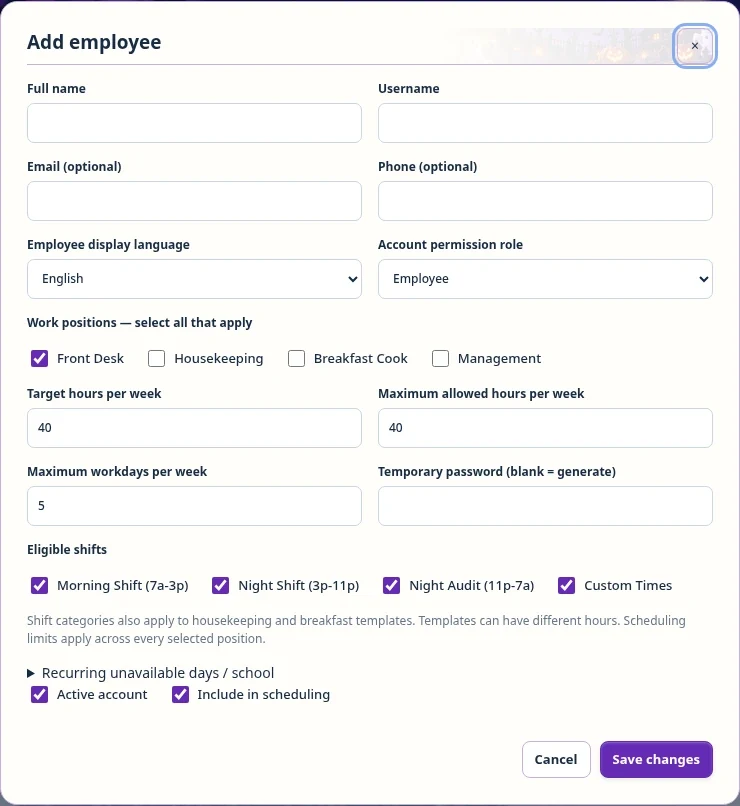
Add employees with a username, saved language, and the positions they can work. Keep a shared Front Desk / Housekeeping employee on one record. Email and phone are optional.

  1. Choose the account role separately from the work positions.
  2. Set Active and Include in scheduling for employees who should appear in the roster.
  3. Set a target, a weekly maximum, maximum workdays, and eligible shift categories.
WHERE TO GOEmployees → Add / Edit employee
Actual employee form with role, positions, hours, and shift eligibility Enlarge
Actual application screenshot with fictional training records.
02

Tell the scheduler what matters.
Times, demand, and boundaries.

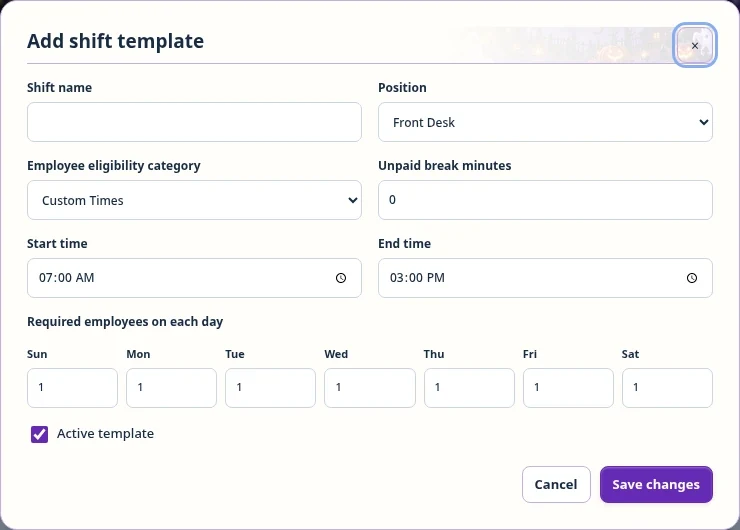
Define your shift templates and the number of people required each weekday. Then enter the availability and rest rules that determine whether an employee can cover them.

  1. Create a template for the correct position and eligibility category.
  2. Enter start/end times and genuine unpaid break minutes. Overnight end times continue to the next day.
  3. Set recurring school or unavailability rules and review approved absences.
WHERE TO GOSchedule → Schedule settings → Shift times & coverage
Actual shift-template form and weekday staffing counts Enlarge
Actual application screenshot with fictional training records.
03

Build a week your way.
Manual, copied, or automatically proposed.

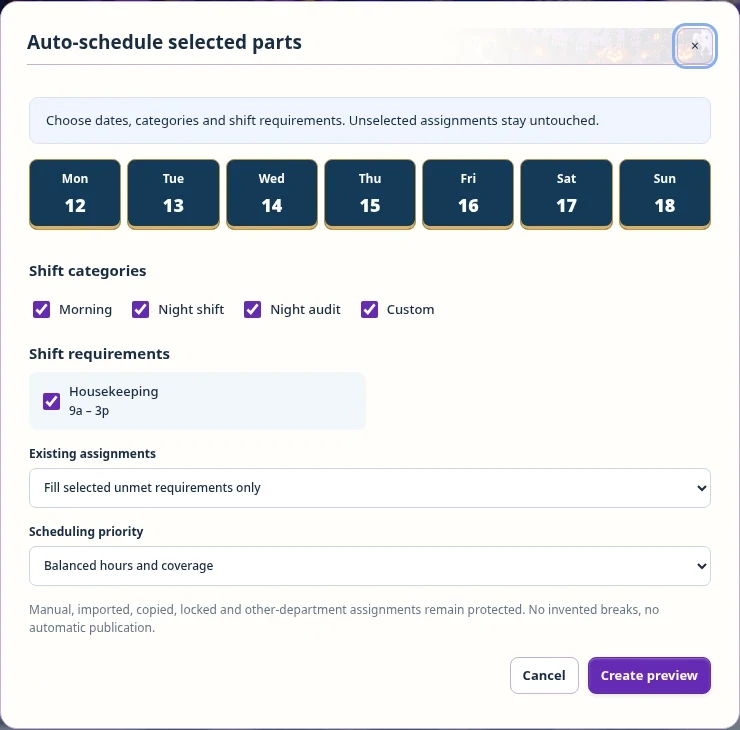
Choose a department and week. Add individual shifts, use Bulk dates, copy a week, or ask Auto-schedule to propose assignments for the selected requirements.

  1. For automatic scheduling, choose dates, categories, requirements, and a priority.
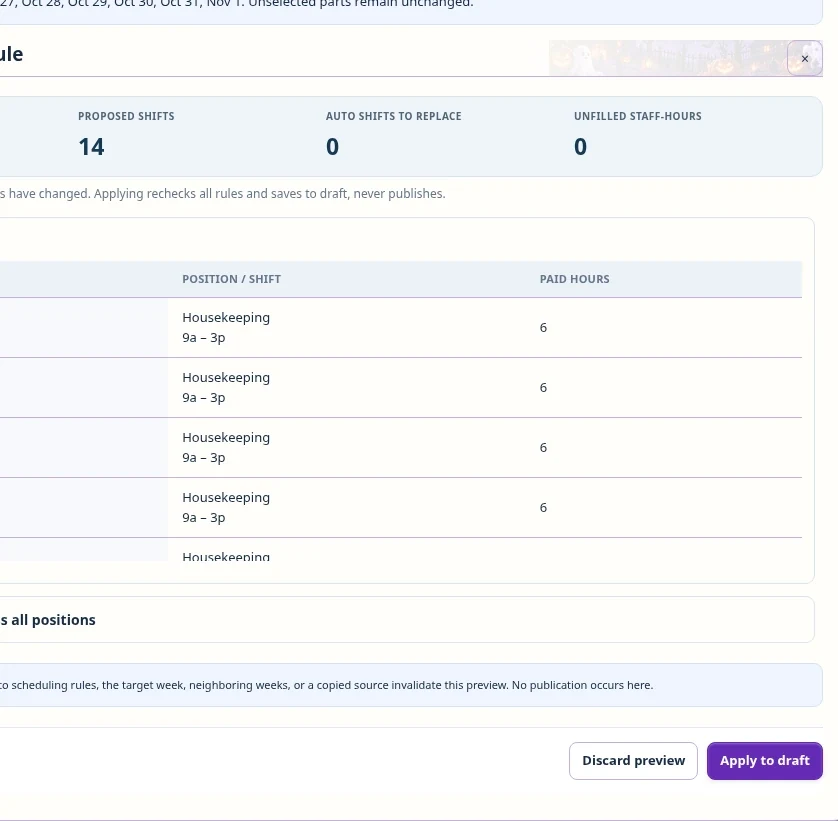
  2. Read the proposed assignments and the explanations for unfilled requirements.
  3. Apply to draft only after review. An unapplied preview changes nothing.
WHERE TO GOSchedule → Department → Week → Auto-schedule
Actual Auto-schedule controls for dates, requirements, and scheduling priority Enlarge
Actual application screenshot with fictional training records.
04

Review before anyone follows it.
A complete view, not a blind guess.

Review exact-time coverage, employee hours, other-position busy time, and any warnings. An automatic proposal may leave gaps when staff or rules do not allow a valid assignment.

  1. Look at both daily headcount and the specific uncovered intervals.
  2. Edit or bulk-adjust assignments; current rules are checked before saving.
  3. Use Undo / Redo for eligible draft edits, or mark the department ready for management review.
REMEMBERReady for review is not Published.
Actual generated schedule proposal with assignments and review controls Enlarge
Actual application screenshot with fictional training records.
05

Make the right schedule official.
One department at a time.

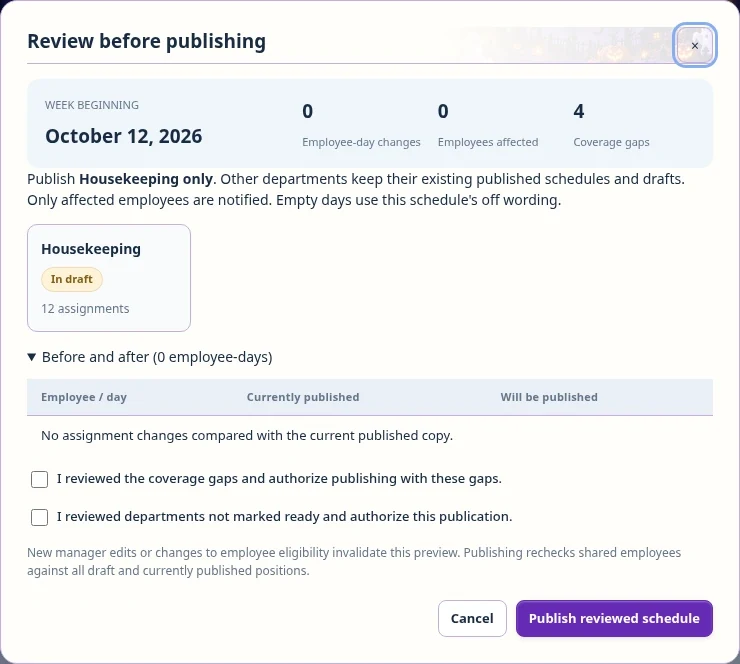
An authorized publisher reviews the changes and posts the selected department. Other departments keep their own drafts and posted copies.

  1. Review the before-and-after publication preview and any coverage warnings.
  2. Publish only when the department is ready for employees to follow.
  3. Affected employees receive in-app notices and can explicitly acknowledge their current schedule.
WHERE TO GOSchedule → Publish selected department
Actual review-before-publishing form for one department Enlarge
Actual application screenshot with fictional training records.
06

Stay in step when plans change.
Requests, swaps, and messages stay connected.

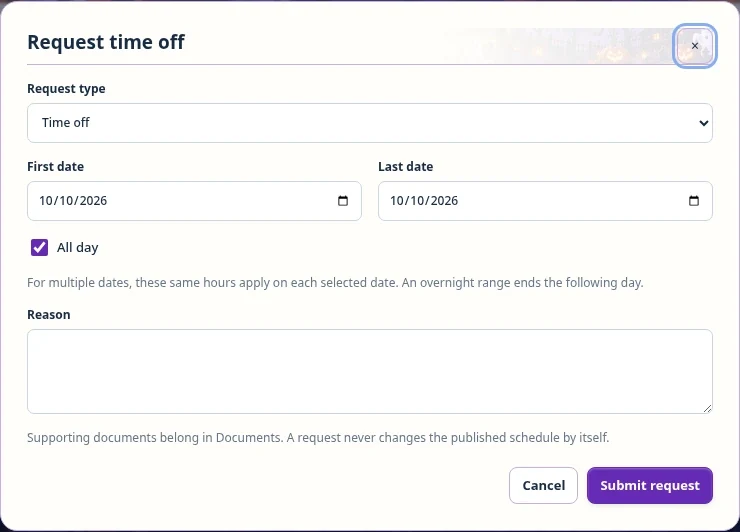
Employees can request time off, ask for an availability change, or propose a shift exchange with a colleague in the same department. Management reviews the effect before changes become official.

  1. Approve through the appropriate request workflow, not by a chat reaction.
  2. Check both employees and all positions before assigning replacement or swapped shifts.
  3. Publish each affected department/week and keep important instructions in staff messages.
REMEMBEREmployees follow the published schedule until a revision is published.
Actual time-off request form with partial-day and date controls Enlarge
Actual application screenshot with fictional training records.

A SAFE WAY TO GET FAMILIAR

Test the auto-scheduler.
Keep control of the result.

Use an unpublished practice week. Do not publish a test just to see how it looks.

GenerateReviewApply to draftKeep or clear

Like the proposal?

Review the complete department, adjust what needs attention, then publish when it is ready to become the real schedule.

Prefer to start again?

Choose Clear draft week → Only auto-scheduled shifts. Preview, type CLEAR, and confirm. Then add shifts manually or generate another proposal.

Know what stays.

Other departments, approved absences, recurring rules, and protected assignments are not cleared. The department week must never have been published.

Need the meaning of every field?

The in-app How-To Center includes detailed rules, numbered instructions, and training screenshots filtered to the account's permissions.

Open How-To Center

MAKE THE NEXT WEEK A CLEARER ONE

A place for every shift.
A plan for every person.

Open your scheduler

Existing staff sign in with their own account.
New employee accounts require management approval.