PLAN THE WEEK
Manual and automatic scheduling
Build shifts one cell at a time, apply one shift to several dates, or generate a proposal. Review the result before applying it to draft.
Learn how
THE FEATURE COLLECTION
Scheduling, availability, requests, and the communication that supports them. A connected set of tools built around your employees' working week.
25 features to explore
PLAN THE WEEK
Build shifts one cell at a time, apply one shift to several dates, or generate a proposal. Review the result before applying it to draft.
Learn howPLAN THE WEEK
Start from a prior week or a one-week pattern. Two-week A/B templates can help repeat a rotation, subject to the destination week's current rules.
Learn howPLAN THE WEEK
Choose the dates, shift categories, and requirements to consider. Rebuilding protects manual, imported, copied, locked, and out-of-scope work.
Learn howPLAN THE WEEK
A person working several positions still has one record. Overlap, rest, availability, and combined hour limits are checked across departments.
Learn howPLAN THE WEEK
See both distinct daily headcount and intervals with too few scheduled employees. Adjoining custom shifts can cover a requirement together.
Learn howPLAN THE WEEK
Compare scheduled weekend days, distinct weekends, night-audit assignments, and hours over a selected period. This is review, not an automatic fairness score.
Learn howEDIT & PUBLISH
Apply a shift or permitted day-off label to one employee on several dates. Preview hours and replacements; a validation conflict prevents partial saving.
Learn howEDIT & PUBLISH
Reverse eligible recorded draft edits after review. A later conflicting edit or department publication prevents overwriting newer work.
Learn howEDIT & PUBLISH
Remove only auto-generated work, or all editable entries, from a department week that has never been published. Protected records remain.
Learn howEDIT & PUBLISH
Review and publish Housekeeping without publishing Front Desk or Breakfast drafts. Employees see their personal posted shifts across positions.
Learn howEDIT & PUBLISH
Show the affected employee a previous-to-current comparison when their posted schedule changes. Draft experiments stay out of the employee's view.
Learn howEDIT & PUBLISH
Collect deliberate schedule acknowledgment. Configure management reminders when a department is still unposted; reminders never publish it automatically.
Learn howREQUESTS & SWAPS
Employees request dates or hours with a reason. Authorized managers inspect staffing impact before approval; publication remains a separate step.
Learn howREQUESTS & SWAPS
Staff can request an effective-dated change to school or recurring availability. Existing rules remain until the request is approved.
Learn howREQUESTS & SWAPS
Employees agree on the pair of shifts; an authorized manager rechecks the rules and approves the exchange to draft. Each affected week must be published.
Learn howREQUESTS & SWAPS
Review eligible replacement candidates or invite interest in an open shift. Volunteering alone does not assign or publish a shift.
Learn howKEEP IN TOUCH
Keep schedule questions and management announcements with your team. Message oversight is disclosed, and management can review workplace conversations.
Learn howKEEP IN TOUCH
With a configured translator, incoming messages display in the reader's saved app language. Self-hosted LibreTranslate requires a separate running service.
Learn howKEEP IN TOUCH
Visible-app notices update automatically. Email and closed-app push need configured services, worker processing, and supported device permissions.
Learn howVIEWS & CONTROL
Create a seven-day departmental schedule with colored shifts, day-off wording, a saved logo, and optional seasonal artwork. Browser print settings still apply.
Learn howVIEWS & CONTROL
Read XLSX, CSV, or recognizable selectable-text PDF schedules. Correct employee matches and times, then review changes before saving a draft.
Learn howVIEWS & CONTROL
Review scheduled hours and optional manager-entered actual totals. Overnight reporting options are explicit; this is not payroll or a time clock.
Learn howVIEWS & CONTROL
Week grid, week list by day, employee cards, and day by shift. Management controls shared defaults and enabled views.
Learn howVIEWS & CONTROL
Use employee usernames without requiring email or phone. Manage role access, branding, and seasonal appearance, with in-app step-by-step help.
Learn howVIEWS & CONTROL
Administrator tools provide verified backups, compatible signed updates, and controlled restore/rollback. No manual checksum entry is needed.
Learn howA BETTER PROPOSAL STARTS WITH BETTER RULES
Target hours and scheduling preferences help guide a proposal. Hard restrictions stop an invalid assignment. The distinction matters when a shift stays unfilled.
Automatic scheduling can leave gaps. It does not guarantee a complete or mathematically optimal result.
Understand the setup order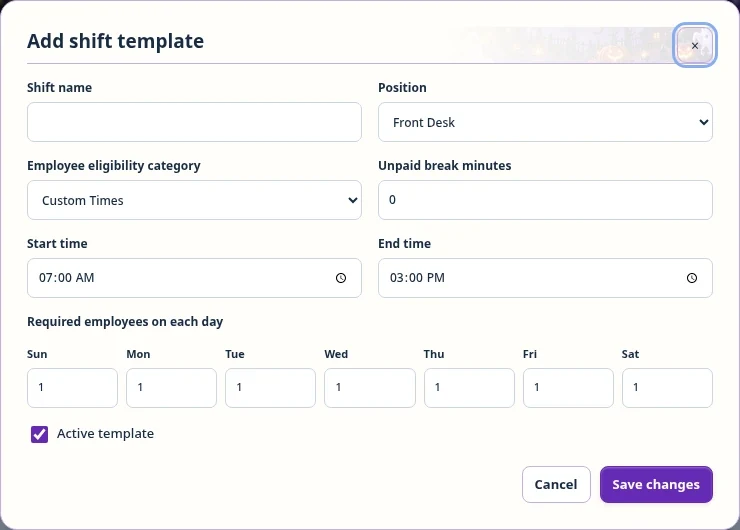 Enlarge
EXPERIMENT WITHOUT POSTING THE EXPERIMENT
Try an automatic proposal. Apply it when useful, or discard it before saving. After applying, clear eligible generated work from a never-published department week and build it manually.
Undo protects newer edits, and the publication preview gives you a final review. None of these tools silently makes a test schedule official.
Follow the practice workflow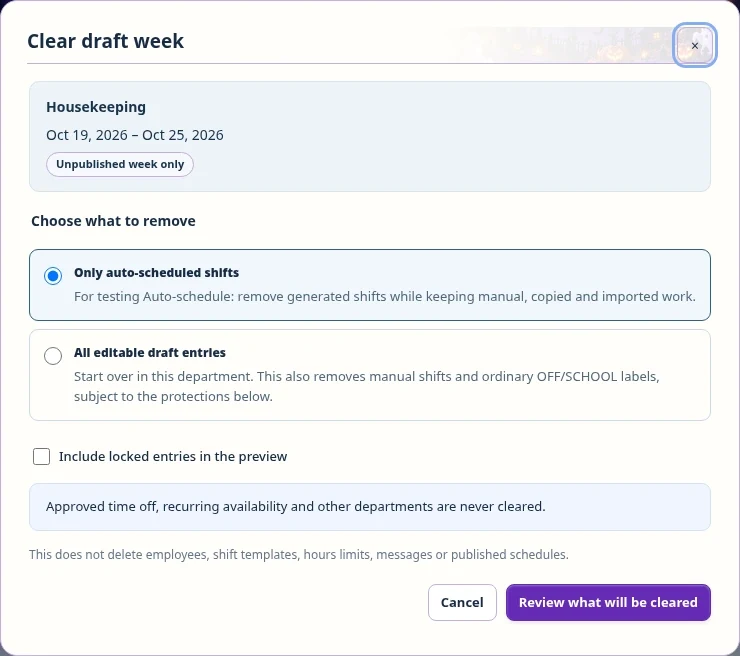 Enlarge
LIFE CHANGES. KEEP THE PLAN CONNECTED.
Time off and school restrictions belong to the person, not just one department. Shift swaps involve both employees and management review before the department is republished.
Employees keep their own self-service view. Private documents stay separate from team schedules and workplace chats.
Read the request FAQs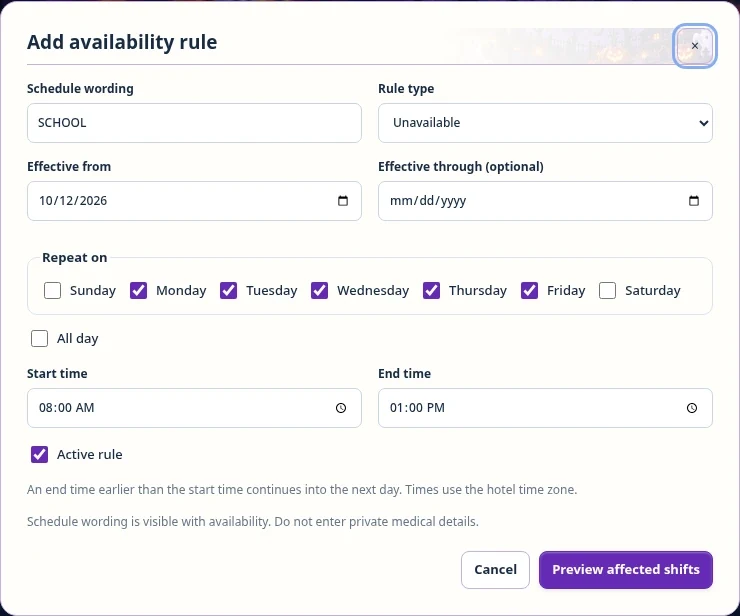 Enlarge
A PROFESSIONAL LOOK. A PERSONAL TOUCH.
Use your logo and app icon, a neutral navy-and-gold workspace, or coordinated seasonal artwork. The schedule remains a working interface, not a decorative picture.

Included application artwork. This preview does not change your live system. Appearance is not a holiday or leave policy.
KEEP THE COPY THAT WORKS FOR YOU
Print the selected department in a weekly format that carries over shift colors, your logo, OFF wording, and optional seasonal artwork. Choose an ink-friendly version when you prefer.
Employee printing stays personal and published-only. Excel export and reviewed imports support existing spreadsheet workflows.
Printing & import questions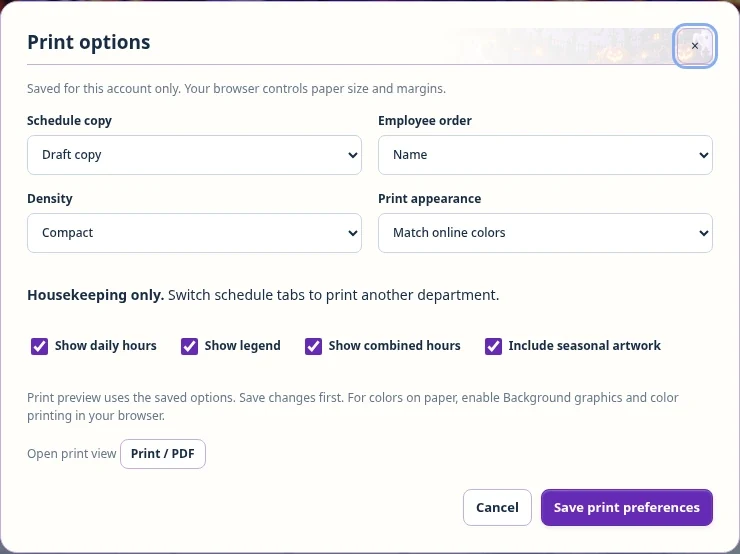 Enlarge
MAKE THE NEXT WEEK A CLEARER ONE
Existing staff sign in with their own account.
New employee accounts require management approval.