
Administrator
Full system and maintenance authority, with responsibility for settings, account security, backups, and updates.
MOBILE & YOUR TEAM
Managers get their permitted departmental roster. Employees get their own published schedule, requests, and conversations. A layout change never changes access.
FOUR WAYS TO SEE THE SAME SCHEDULE
See all seven dates beside the employee names. Condensed cells make it useful for an at-a-glance view.
Administrator, GM, and AGM can choose defaults and enabled layouts. Large rosters and enlarged text may still need scrolling.
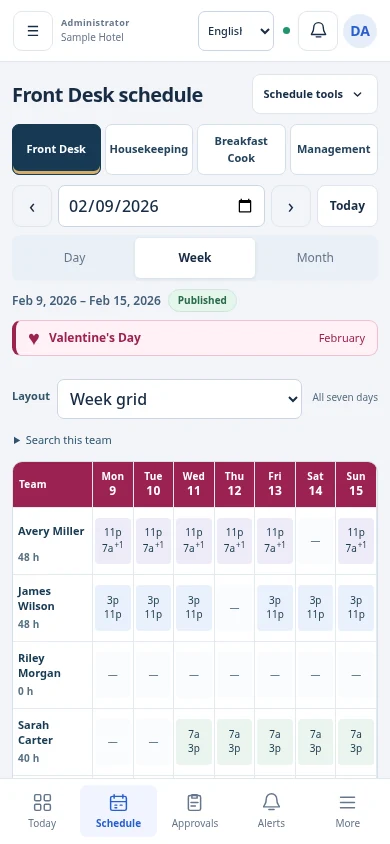
Actual application previews
Training records · Earlier layout screenshots
ONE CONVERSATION. TWO LANGUAGES.
With self-hosted LibreTranslate configured, a Spanish-speaking employee can read an English message in Spanish, and an English-speaking employee can read the reply in English.
The recipient's saved app language controls message display, not the language of their phone. Original text stays available.
LibreTranslate must run as a separate service and be connected by an administrator. Self-hosted software has no per-message API subscription, but uses server resources. Translation can be delayed or inaccurate; verify important times and instructions.
CLEAR RESPONSIBILITY. APPROPRIATE ACCESS.
Work positions and account roles are different. A person can work several positions without receiving management permissions.
Full system and maintenance authority, with responsibility for settings, account security, backups, and updates.
Operational management and AGM permission delegation. Administrator-only controls remain restricted.
Delegated operational access. Publishing and private-document permissions are granted separately; some messaging and employee-view rights are role-based.
Housekeeping scheduling and permitted housekeeping workflows. Shared employees' other-position assignments are read-only occupied time.
Their own published shifts, hours, requests, private uploads, and permitted conversations. No access to other employees' schedules.
Management oversight of staff messages is disclosed. Employee-view assistance is recorded and does not silently grant management rights inside an employee account.
FROM A BROWSER TO THE HOME SCREEN
Open the app's installation page from the same link on either phone. Installation and notifications always need the device owner's approval.
Browser support and prompts vary. Scanning a QR code cannot silently install the application.
This opens the scheduling application's setup page, not an app-store listing.
USEFUL ALERTS, WITH CLEAR EXPECTATIONS
Published schedule changes and requests can create in-app notices. Optional device alerts need push enabled, an active background worker, a registered device, and notification permission.
Lock-screen banners and icon badges depend on the phone and its settings. No website can force them on or guarantee instant delivery.
Understand device setupThe application saved the notice or message.
A service accepted the send. It is not proof of phone display.
The employee deliberately confirmed the current schedule or required notice.
MAKE THE NEXT WEEK A CLEARER ONE
Existing staff sign in with their own account.
New employee accounts require management approval.